
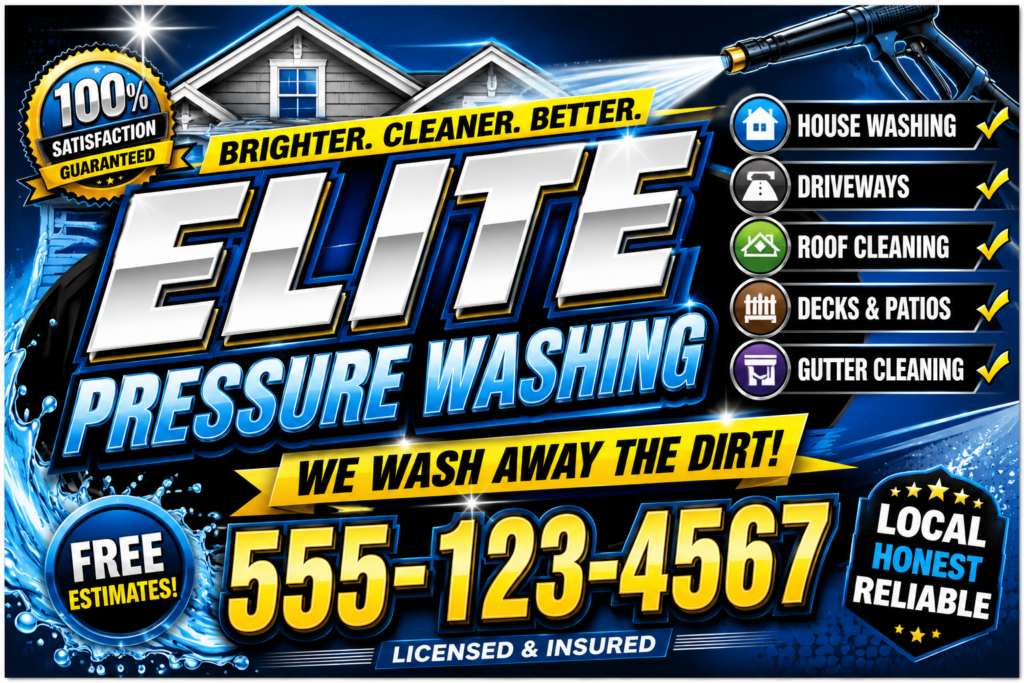
Free-Tier Workflow: One Good Sign or Flyer (No Cost)
Step 1: Keep It Extremely Simple (Most Important Decision)
For zero-budget local businesses, less is more.
Best approach for not getting roasted:
- Big, bold text + your logo + one simple background/color
- Avoid complex scenes, illustrations, or full AI-generated artwork
- Yard signs, A-frames, and flyers that are mostly text + logo photograph better and look more legitimate
- If they want something more visual (like a menu or event flyer), keep the AI part very light.
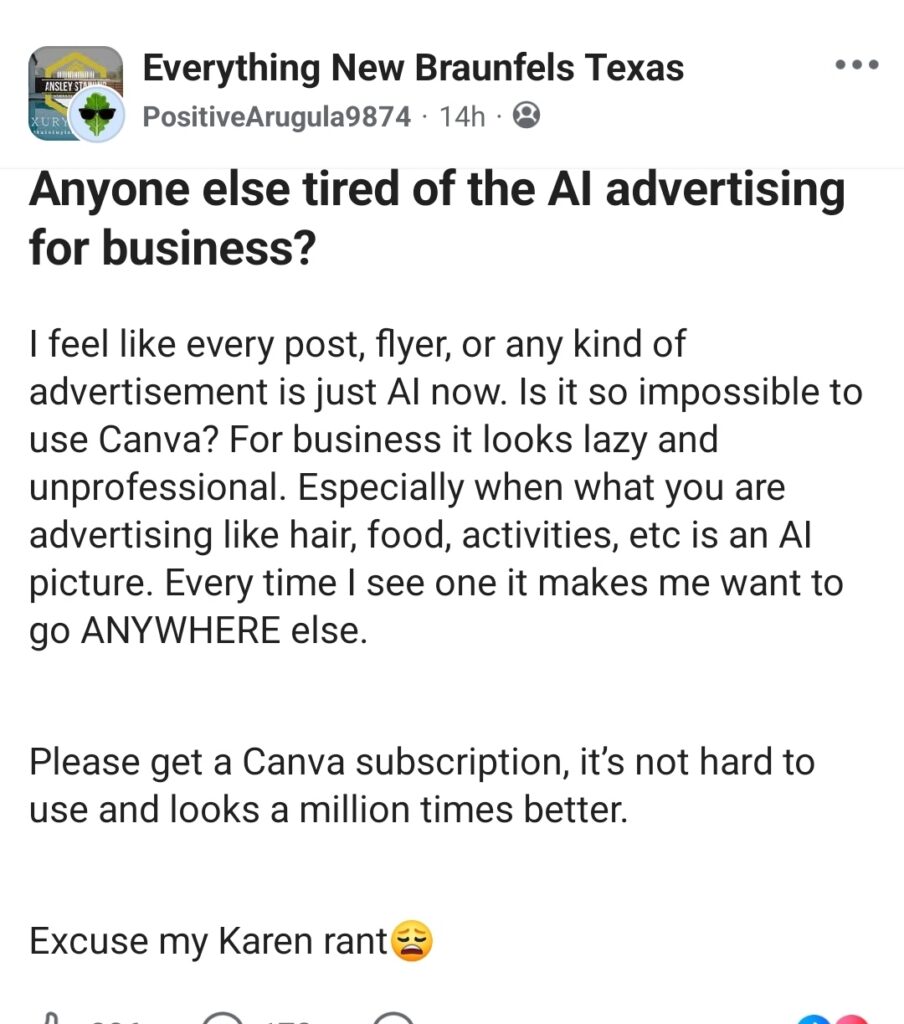
Step 2: Use ChatGPT (Free) – Only for Copy + Basic Mockup
Don’t overdo image generation here — free tier has limits.
What to do in ChatGPT (free):
- First, get good copy:“I need short, friendly copy for a [yard sign / A-frame / flyer] for a [type of business] in [town]. Keep it simple and local-sounding. Give me 3 options for the main headline and supporting text.”
- Only generate one or two mockups max (to save your free image credits):“Create a simple, realistic mockup of a [sign type] that says: [paste the text]. Make it look like a real photo — natural daylight, slightly imperfect, shot on phone, placed outside a small local business. Keep the design clean and not overly polished.”
Use these mockups only as visual reference, not as the final file.
Step 3: Build It in Canva (Free) – This Is Where It Becomes Professional
This is the most important step for avoiding the AI look.
- Go to Canva.com (free account)
- Search for free templates:
- “Yard sign”
- “A frame sign”
- “Flyer”
- “Menu”
- Pick a simple, clean template (avoid ones with lots of illustrations)
- Manually do these things:
- Upload their logo
- Type the text yourself using Canva’s free fonts (pick bold, readable ones like Montserrat, Bebas Neue, or Open Sans)
- Use 1–2 solid colors or a very simple background
- Make the text big and high contrast
Pro tip for free Canva: Keep the design minimal. The cleaner and simpler it is, the more professional it looks — and the less likely it is to have any AI “tells.”
Step 4: Quick Realism Check Before Exporting
Ask yourself (or the business owner):
- Does this look like something a real local business would make?
- Would someone in the local Facebook group immediately think “this looks AI”?
- Is the text easy to read from a distance (for yard signs)?
If it feels too perfect or generic, simplify it further.
Step 5: Export for Free
- For print (yard sign, flyer, menu): Export as PDF Print
- For digital (social media, website): Export as PNG or JPG
Free Canva allows both.
Recommended Simple Designs That Usually Don’t Get Roasted
| Sign Type | Recommended Style | Why It Works |
|---|---|---|
| Yard Sign / A-Frame | Big business name + phone + short offer on solid color | Clean, readable, looks intentional |
| Event Flyer | One photo (real if possible) + bold text | Less likely to look AI |
| Menu | Clean list layout + simple header | Text-focused = harder to spot as AI |
| Window Sign | Bold text only, minimal graphics | Professional and cheap to print |
Realistic Expectations on Free Tiers
- You can make something that looks decent and local.
- You probably won’t get studio-quality or highly illustrated designs.
- The safest route is simple + bold text + logo. This style rarely gets mocked.